Learning only works when it's delivered. This release makes sharing faster, trackable, and consistent across all your content. Less admin, clear data on everyone you train, and a manager-ready report, anytime.
Here's what's new.
Sharing: rebuilt around your people
When you share a course via email, SMS, or WhatsApp, the sharing window now opens your learner list. Pick people by name, select all, or switch to the Groups tab and share with a whole team, or several, in one click.
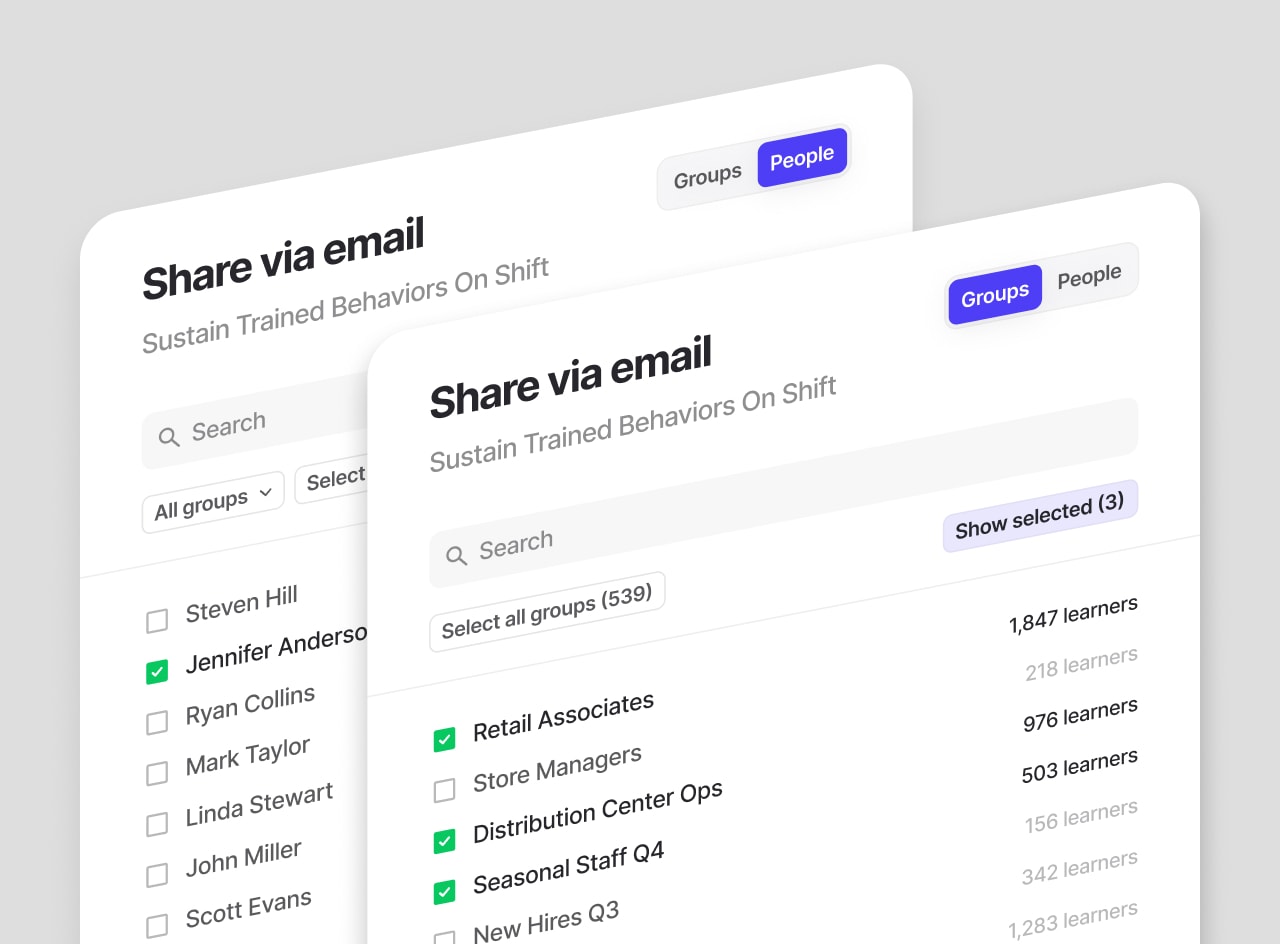
Choose a group, synced from your HR system or built by you, and everyone in it gets the course. No more picking the same 40 people one by one, and no more fishing them out of "previously shared with" every time you send something new. You see how many people are in each group before you send. And if someone is missing an email or phone number for that channel, the sharing window shows you right there. No silent gaps, no guessing who got left out.
Set up your groups once and they’ll keep working for you. The next course, the monthly refresher, the urgent update: reach your group in a click.
And yes, Learning Paths will get this same flow later on.
Ad hoc sends: moved, and upgraded
Sometimes you need to reach people you have almost no data on. A batch of seasonal hires. A crew of volunteers. A list of phone numbers from a site manager. We've got you.
You can still copy and paste contacts straight into 7taps. That option now lives in Learners tab.
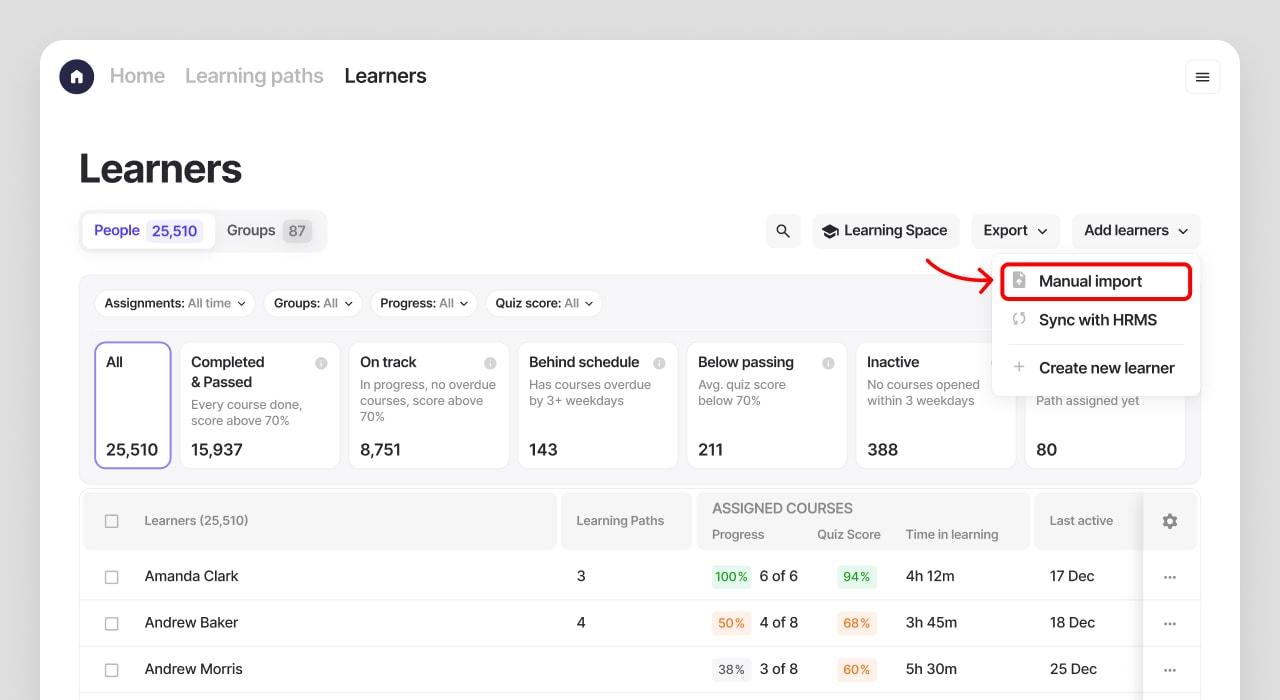
Click Add learners → Manual import → Paste contacts

Drop in your emails or phone numbers: valid ones are counted and ready to add, invalid ones are flagged separately, so you know exactly what needs a fix.
Here's the upgrade. Your pasted list becomes a group. Name it, edit it, reuse it. Next time those same frontline workers need a refresher, the group is waiting.
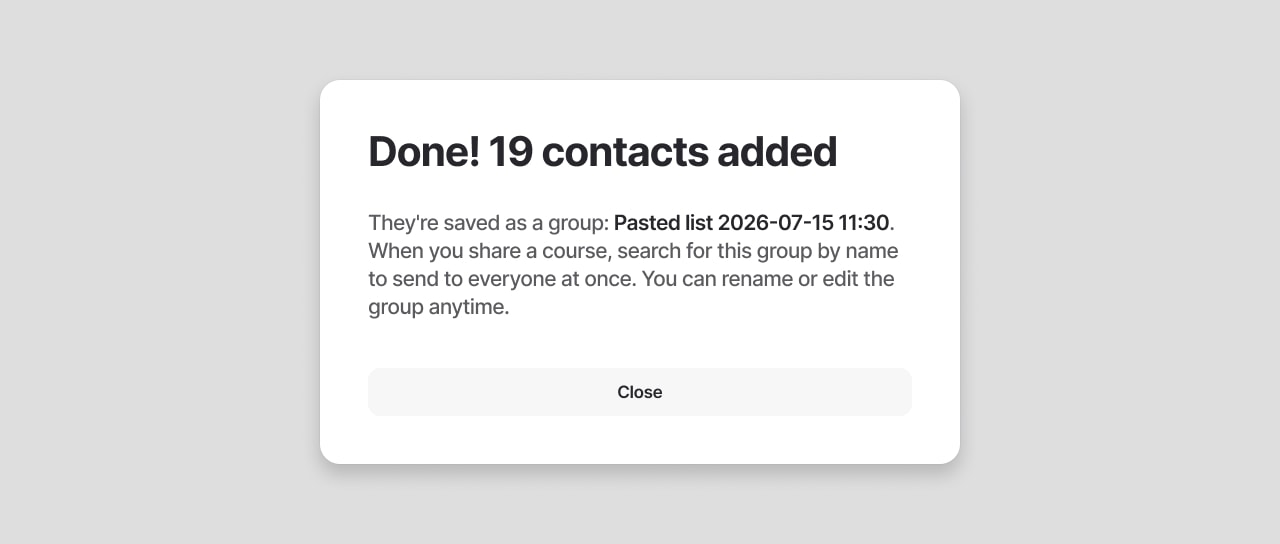
And nothing gets touched along the way. Pasted groups are created alongside the groups you already have. If someone is already in 7taps, they simply get one more group next to their existing ones. No data is overwritten, nothing is deleted.
Learner Management: now in all paid plans
Good sharing starts with good data, so we've enabled Learner Management for every paid plan. It's the Learners tab in your workspace: every person you train, their contacts, groups and progress in one place.
There are three ways to add people:
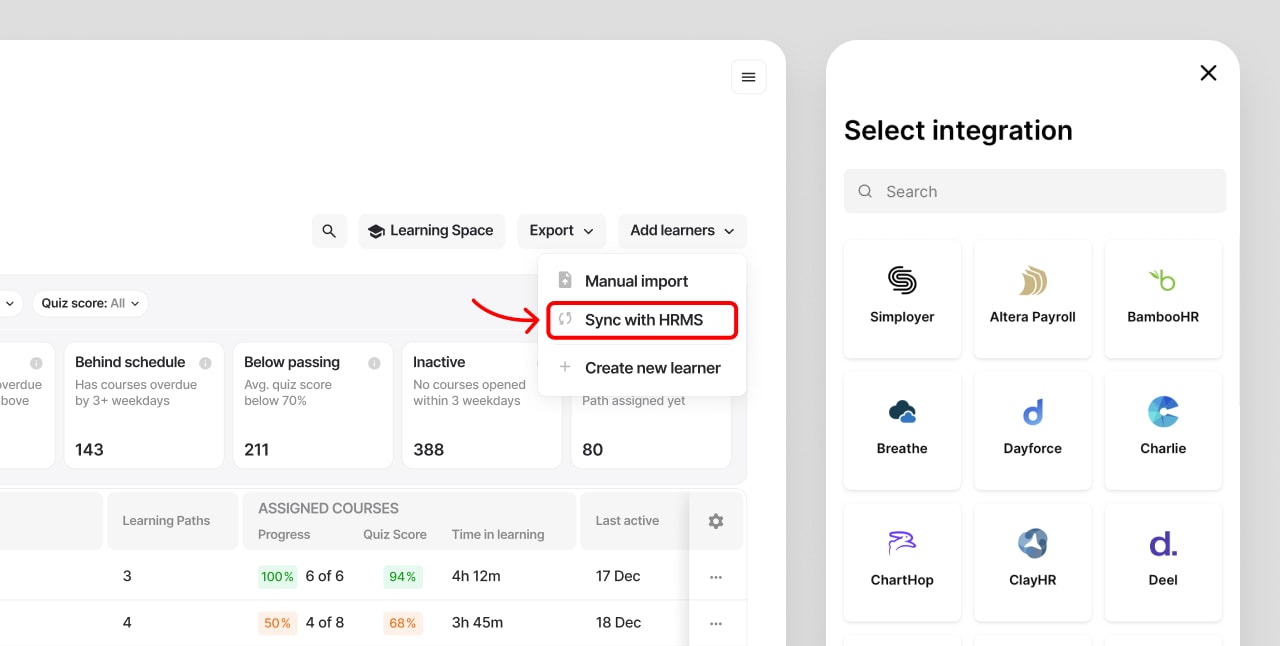
Sync with your HR system. Connect it once, sync the groups you need, and you’re set. New hires appear, leavers drop off, departments stay current, and you can share courses with the right teams in one click.
You'll find it under Learners → Add learners → Sync with HRMS.
Not sure where to start? Message support, we'll help you set it up.
Upload a CSV. No HRMS connection? A file with names and details works too. You'll see completions by name instead of a bare email address, and your reports will actually tell you who's who.

Paste contacts. For the quick ad hoc sends, as above.
Our advice: feed Learner Management complete profiles, not bare contacts. Full profiles take the guesswork out of reports. Completions, progress, and quiz scores tie back to a real person across every course and channel, so the impact of your programs is easy to see, and easy to show.
CSV imports: see changes before they happen
Importing a spreadsheet used to be a small act of faith. Not anymore.
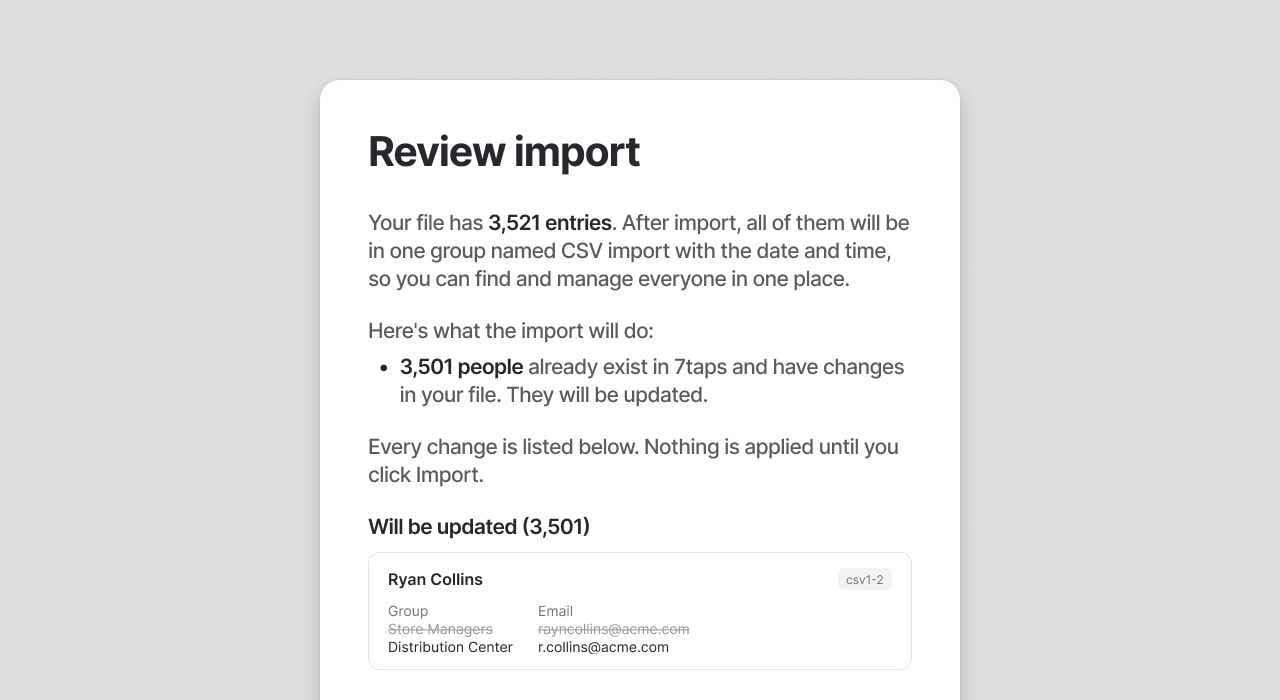
Before any CSV import goes through, 7taps shows you exactly what's about to happen: which people are new, which records will be updated, and which contacts didn't pass validation. Spot a typo, a wrong column, a duplicate? Cancel, fix the file, upload again. Nothing changes in your learner list until you've seen the preview and confirmed it.
Every CSV upload also creates its own group, named with the file's date and time. Same as with pasted contacts: rename it, reuse it, and every import stays easy to track.
Learner data: new filter, tidier exports
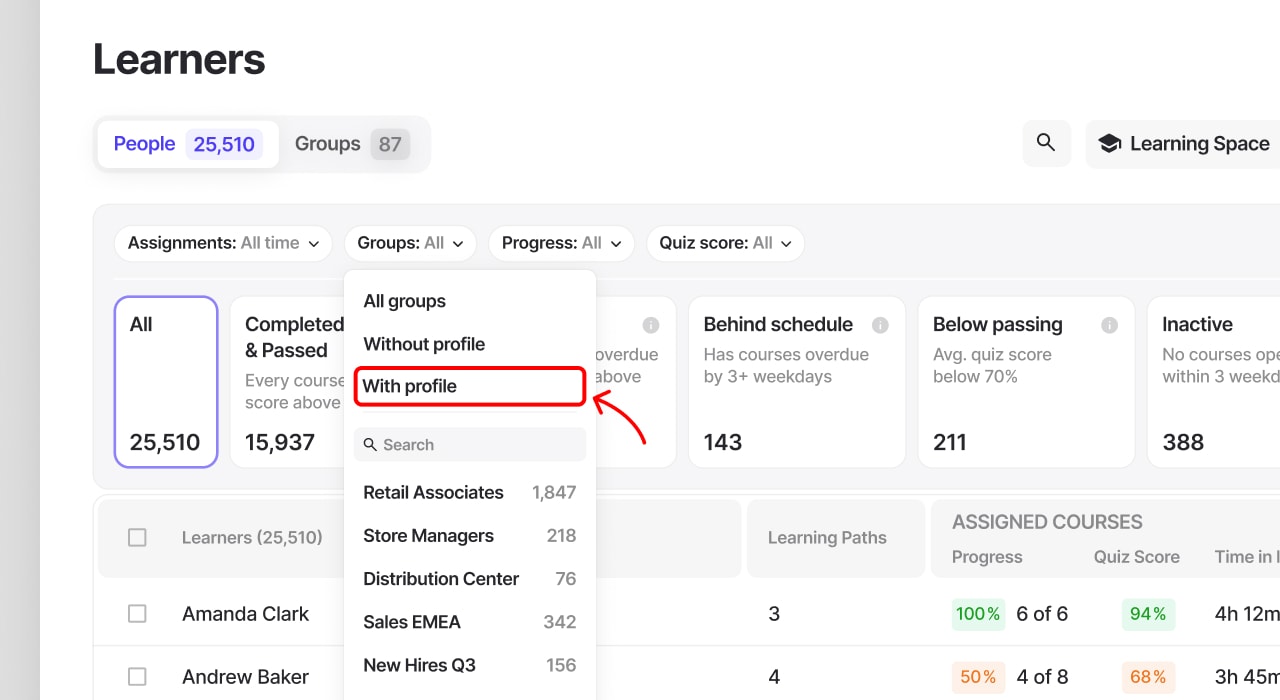
The Groups filter in Learner Management now includes a With profile option next to the existing Without profile one. Use it to pull up everyone with a complete profile in one click, to assign them to a group or line up a specific audience for a course. Without profile does the reverse: it surfaces incomplete records so you can fix or remove them. Find both under Learners → Groups filter.
Exports got tidier too. Each group now always appears in the same column for every person in the file, so your pivots and filters stay exactly where you expect them.
AI voices: preview before you pick one
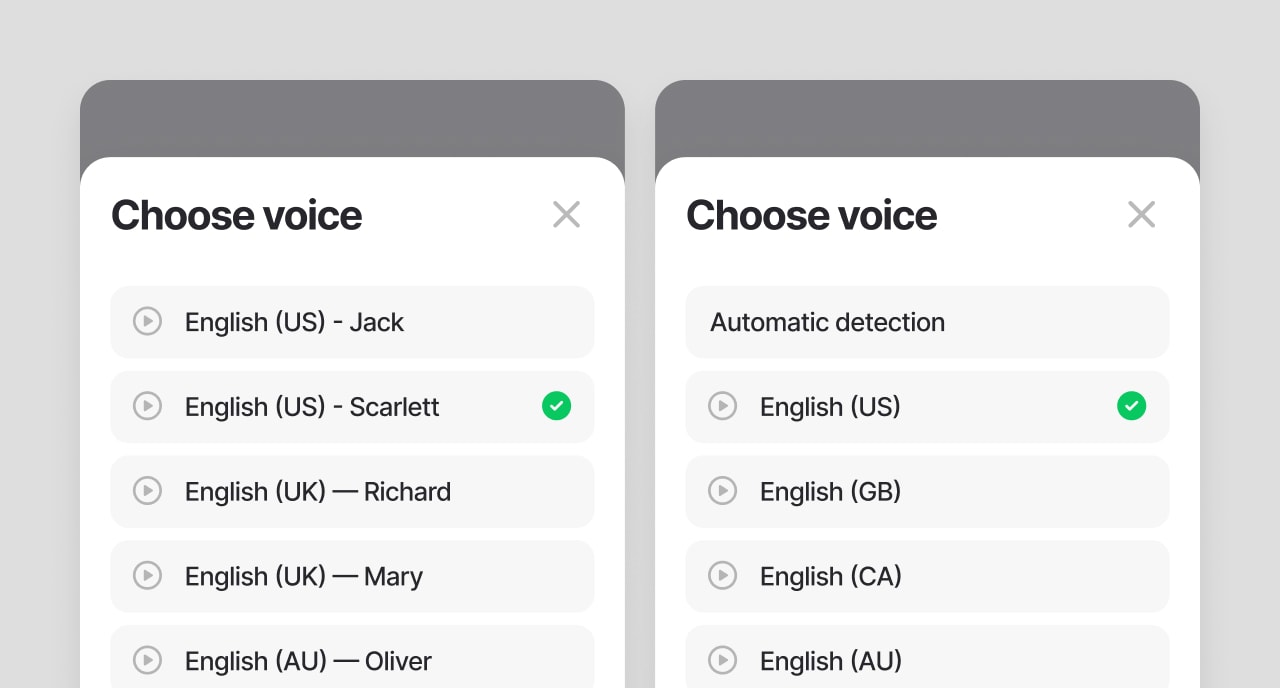
Finding the right voice used to mean generating, listening, and starting over. Now you can preview any voice in Text-to-speech and Text-to-video cards before committing. Hover over a voice in the selector, hit Preview, and hear a short sample. Pick the tone and accent that fits, then generate once.
Translations: four new languages
Course translation now supports Thai, Vietnamese, French Canadian, and Hebrew. The learner interface adds Thai, Vietnamese, and French Canadian.
Hebrew switches the layout to right-to-left automatically, and back when you switch away. The learner interface stays in English for Hebrew, the same way it does for Arabic.
Also in this release
Folders shared via link or QR code now appear in Learning Space, right next to individual courses. With SSO (single sign-on) enabled, all that activity connects back to the right person.
The Library tab, which held course templates, is switched off for now. It may return in a different form down the line.
Stay tuned for more!
Questions about the new sharing flow? Message 7taps support in the chat, we'll walk you through it.